iPhone VPN: How to Choose, Set Up, and Use One
Learn what an iPhone VPN does, how to set it up, and when a free or paid service makes sense.
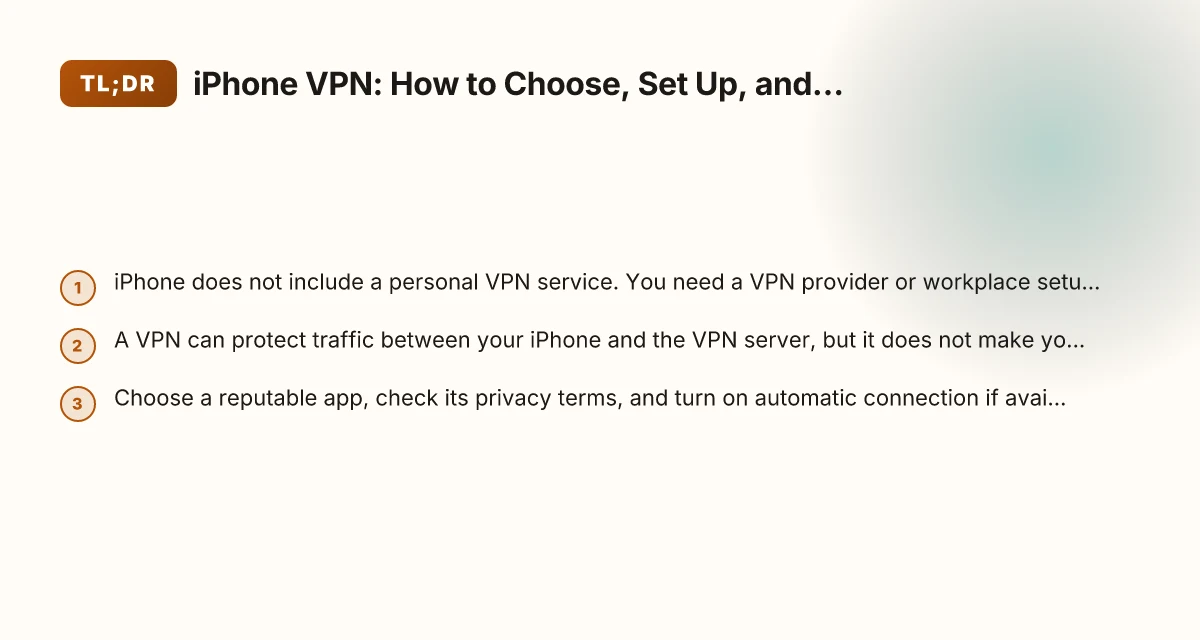
An iPhone VPN is an app or configuration that routes your internet traffic through a VPN server. To use one for personal privacy, choose a VPN service and install its iPhone app. IPhone does not come with a built-in consumer VPN service. You can also add a work or school VPN configuration provided by your organization. A VPN may help protect your connection on public Wi-Fi and change the apparent location of your internet connection, but it cannot prevent every kind of tracking or guarantee anonymity.
Compare iPhone VPN setup options
| Option | Setup method | VPN app needed? | Main advantage | Main consideration |
|---|---|---|---|---|
| VPN provider app | Install and sign in | Yes | Simplest setup | Requires a provider account |
| Manual IKEv2 setup | Enter provider settings | No | Uses iPhone settings | Requires configuration details |
| Manual IPSec setup | Enter provider settings | No | Uses iPhone settings | Requires configuration details |
| Manual L2TP setup | Enter provider settings | No | Uses iPhone settings | Requires configuration details |
| Work or school VPN | Follow organization instructions | Maybe | Access to private resources | Settings come from the organization |
| Configuration profile | Install a supplied profile | Maybe | Can apply settings automatically | Use profiles only from trusted sources |
Compiled November 2026; check the provider's site for current details.
| VPN | Obfuscation | From / month | Plan | Free plan | Refund | Alipay | UnionPay | Crypto | Website opens in China | Trustpilot | |
|---|---|---|---|---|---|---|---|---|---|---|---|
 ZoogVPN | Turn on manually Shadow | $2.49/mo | 27 months: $59.99 | Yes | 7 days | ✓ | ✓ | ✓ | ✓ | Official site blocked; our special link opens (4.4 s) | 4.2/5 (195 reviews) |
 NordVPN | Turn on manually Obfuscated Servers / NordWhisper | $3.49/mo | 27 months: $94.23 | No | 30 days | ? | ✗ | ✓ | ✓ | ✗ Blocked | 4.2/5 (51,628 reviews) |
 ExpressVPN | ✓ On by default all servers | $3.00/mo | 28 months: $84 | No | 30 days | ✗ | ✗ | ✓ | ✗ | ✗ Blocked | 4.4/5 (29,706 reviews) |
 Surfshark | ✓ On by default Camouflage, with OpenVPN | See site | See site | No | 30 days | ✗ | ✗ | ✗ | ✓ | ✗ Blocked | 4.3/5 (31,823 reviews) |
 Proton VPN | Turn on manually Stealth, free plan too | $2.99/mo | 12 months: $35.88 | Yes | 30 days | ✗ | ✗ | ✗ | ✓ | ✗ Blocked | 2.1/5 (1,040 reviews) |
 Astrill VPN | Turn on manually StealthVPN / OpenWeb | $12.50/mo | 24 months: $300 | No | See site | ✗ | ✗ | ✗ | ✓ | ✗ Blocked | 1.3/5 (110 reviews) |
 Private Internet Access | Turn on manually Shadowsocks, OpenVPN only | $2.03/mo | 40 months: $81.2 | No | 30 days | ✗ | ✗ | ✗ | ✗ | ✗ Blocked | 4.2/5 (11,033 reviews) |
 CyberGhost | Turn on manually selected servers | $2.19/mo | 28 months: $61.32 | No | 45 days | ✗ | ✗ | ✗ | ✓ | ✗ Blocked | 4.0/5 (24,178 reviews) |
 PureVPN | Turn on manually switch to OpenVPN | $1.69/mo | 60 months: $101.55 | No | 31 days | ? | ? | ✗ | ✓ | ✗ Blocked | 4.4/5 (17,994 reviews) |
 AdGuard VPN | ✓ On by default TrustTunnel | $2.99/mo | 24 months: $71.76 | Yes | 30 days | ✓ | ✗ | ✓ | ✓ | Official site blocked; our special link opens (3.7 s) | 4.3/5 (290 reviews) |
 Mullvad | Turn on manually QUIC / Shadowsocks / LWO | $5.61/mo | €5/mo | No | 14 days | ✗ | ✗ | ✗ | ✓ | ✗ Blocked | 3.2/5 (192 reviews) |
 Windscribe | Turn on manually Stealth / WStunnel | $5.75/mo | 12 months: $69 | Yes | See site | ✗ | ✗ | ✗ | ✓ | ✗ Blocked | 4.7/5 (13,355 reviews) |
 StrongVPN | Turn on manually Scramble, OpenVPN TCP | See site | See site | No | 30 days | ✓ | ✗ | ✗ | ✗ | ✗ Blocked | 4.4/5 (2,695 reviews) |
 LightXtreme 闪连 | Not listed | $7.08/mo | 12 months: $84.99 | Yes | 30 days | ✓ | ✓ | ✓ | ✓ | ✓ Yes (3.5 s) | No page |
Prices checked 2026-11-10 on each vendor's pricing page (cheapest long plan, USD). Check the vendor's checkout for the final price.
Obfuscation checked 2026-11-14 on each vendor's site and help center: "on by default" = nothing to set; "turn on manually" = switch protocol or mode in settings; "not listed" = the vendor describes no obfuscation.
Payment methods checked 2026-11-10 on each vendor's payment pages: all 14 take cards and PayPal; ✗ = not listed, ? = the vendor's own pages disagree.
China access: whether the official website opens from mainland China networks (tests the website only, not the VPN connection). Last checked 2026-11-18 01:02 Beijing time.
Trustpilot score and review count checked 2026-11-10.
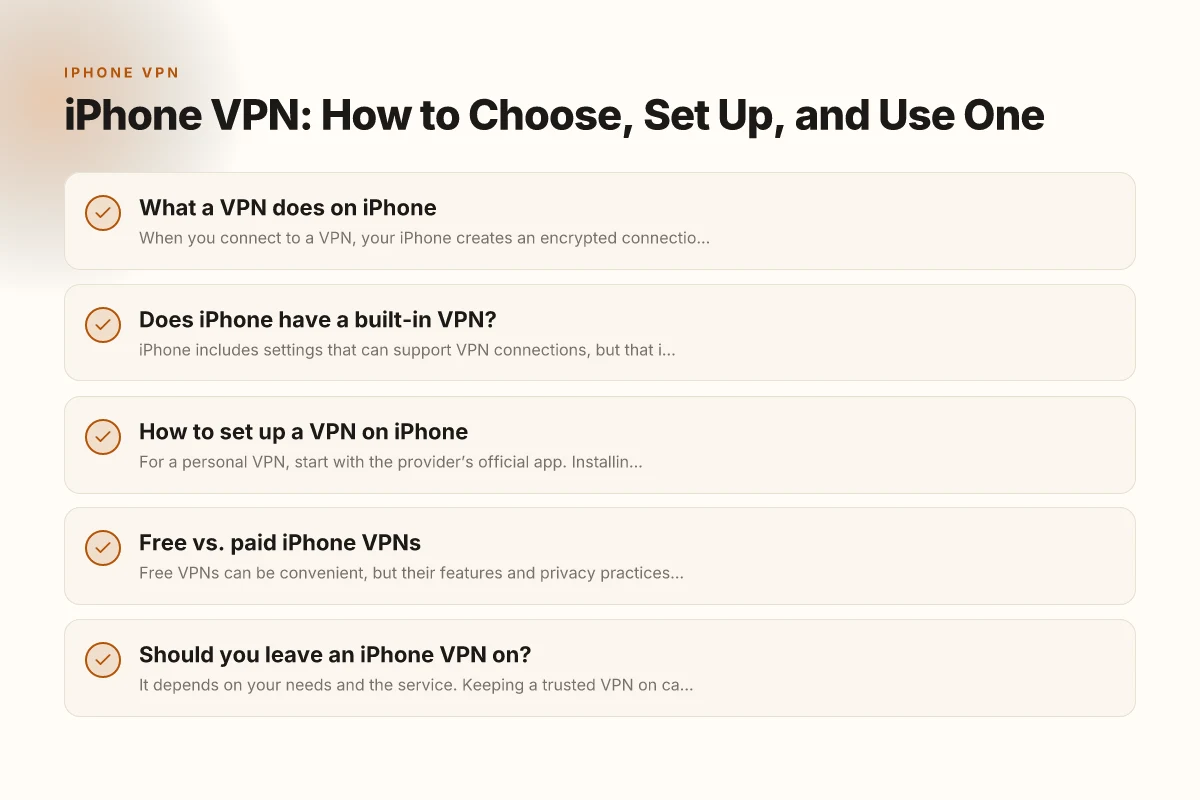
What a VPN does on iPhone
When you connect to a VPN, your iPhone creates an encrypted connection to a VPN server. Websites and apps then see traffic arriving from that server rather than directly from your usual internet connection. This can make it harder for others on the same public Wi-Fi network to inspect your traffic.
A VPN is useful in situations such as:
- Connecting to public Wi-Fi in a café, hotel, or airport.
- Accessing a workplace network through a company VPN.
- Reducing exposure of your browsing activity to the local network operator.
- Using a VPN server in another location, where allowed by the service and local rules.
A VPN does not make you invisible online. Websites may still identify you through account sign-ins, cookies, app permissions, or other tracking methods. Your VPN provider can also see information about your connection, so its privacy practices matter.
Does iPhone have a built-in VPN?
iPhone includes settings that can support VPN connections, but that is not the same as having a free personal VPN service built in. The settings let you connect to a VPN that you or your organization has configured. For personal use, a VPN provider usually supplies an app that handles setup and connection. Forti VPN: What It Is, How It Works, and Whether It’s Right for You
Apple also describes VPN On Demand for managed Apple devices. This feature can automatically establish a VPN connection when needed, based on configuration. It is commonly relevant to organizations managing devices, rather than a general-purpose VPN subscription for every iPhone user.
| Option | What it is | Best suited to |
|---|---|---|
| VPN provider app | An app from a personal VPN service | Personal browsing and travel |
| Work or school VPN | A configuration supplied by an organization | Secure access to internal resources |
| VPN On Demand | A managed setup that connects under configured conditions | Apple device deployment |
How to set up a VPN on iPhone
For a personal VPN, start with the provider’s official app. Installing the app from the App Store and following its instructions is usually the simplest route.
- Choose a VPN provider and review its privacy policy, features, and subscription terms.
- Download its official iPhone app from the App Store.
- Sign in or create an account if required.
- Follow the app’s prompt to add a VPN configuration to your iPhone.
- Approve the request only if you intended to install that provider’s VPN.
- Connect using the app, and check that the connection shows as active.
You can also find VPN settings in iPhone’s settings menu, but manual setup requires the provider’s server details and configuration information. For a workplace VPN, ask your IT administrator for the correct instructions rather than entering settings from an unverified source.
If the VPN will not connect, try switching between Wi-Fi and cellular data, checking for an app update, or restarting the app. If it is a work connection, your organization’s support team may need to check the configuration. f5 VPN download(2026)
Free vs. paid iPhone VPNs
| Factor | Free VPN | Paid VPN |
|---|---|---|
| Cost | No subscription fee | Subscription or other fee |
| Data allowance | May be limited | Often more generous |
| Server choice | May be limited | Often offers more locations |
| Speed and congestion | May vary | May offer more capacity |
| Privacy policy | Check carefully | Check carefully |
| Ads or upselling | May be present | Usually less prominent |
| Support | May be limited | May include customer support |
| Best fit | Occasional basic use | Regular use or more choice |
Compiled November 2026; check the provider's site for current details.
Free vs. paid iPhone VPNs
Free VPNs can be convenient, but their features and privacy practices vary. Some providers offer a free plan with no data limits, while others may restrict features or require an upgrade. Do not assume that “free” automatically means unsafe, or that a paid plan is automatically trustworthy. Review who operates the service and how it handles data.
Before choosing, look for clear answers to questions such as: free VPN to change location(2026)
- What connection or usage information does the provider collect?
- Does the provider explain how it protects account and network data?
- Are the app’s features and limitations clearly described?
- Is customer support available if you cannot connect?
- Does the service offer automatic connection or other features you need?
A free plan may be enough for occasional use if its limits suit you. A paid plan may offer additional options, but compare the actual features and terms instead of choosing based on price or broad privacy claims alone.
Should you leave an iPhone VPN on?
It depends on your needs and the service. Keeping a trusted VPN on can provide consistent protection for traffic routed through it, including when you join unfamiliar Wi-Fi. However, a VPN may affect connection speed, app access, or services that depend on your apparent location. Some apps or websites may also block VPN connections.
Consider leaving it on when:
- You often use public or shared Wi-Fi.
- Your organization requires it to access work resources.
- You want your connection routed through a VPN server while browsing.
Consider disconnecting temporarily if a service is not working and you do not need the VPN for that activity. If your provider offers automatic connection or VPN On Demand, check its settings to see whether they fit your routine. NordVPN download windows 11(2026)
Decide whether to leave an iPhone VPN on
| Situation | VPN useful? | Keep it on? | What it helps with | What it cannot guarantee |
|---|---|---|---|---|
| Public Wi-Fi | Yes | Usually | Encrypts traffic between iPhone and VPN server | Safety from every online threat |
| Trusted home Wi-Fi | Sometimes | Your preference | Routes traffic through the VPN | Better speed or access to every service |
| Mobile data | Sometimes | Your preference | Masks your IP from sites and services | Anonymity |
| Accessing a work network | Yes | While needed | Connects to private organization resources | Access without approved settings |
| Banking or shopping | Sometimes | Your preference | Adds a protected connection path | Protection from phishing or scams |
| Using a location-sensitive service | Maybe | Turn off if needed | Can route traffic through another location | Correct location detection |
| Troubleshooting slow connections | No | Try turning it off | Helps identify VPN-related issues | A fix for unrelated network problems |
| App or website login | Sometimes | Your preference | Changes the route your connection takes | Protection if your account is compromised |
Compiled November 2026; check the provider's site for current details.
What a VPN cannot protect you from
A VPN changes how your traffic travels. It does not secure every part of your online life. It cannot stop you from entering information on a fraudulent website, prevent all advertising or account-based tracking, or protect an iPhone that has been compromised. It also does not guarantee that authorities cannot obtain information: what may be visible depends on the provider’s records, the data involved, and applicable legal processes.
Use a VPN alongside good security habits: checkpoint VPN(2026)
- Keep iOS and your apps updated.
- Use strong, unique passwords and available account protections.
- Check website addresses before entering sensitive information.
- Install VPN apps only from sources you trust.
- Read the provider’s privacy terms and avoid relying on absolute claims of anonymity.
Recommendation
For personal use, choose a reputable iPhone VPN provider whose privacy practices and features you understand, then install its official app and follow its setup instructions. Use a work VPN only with configuration details from your organization. A VPN can be a useful layer of protection, especially on public Wi-Fi, but it works best as part of a broader approach to online security, not as a guarantee of privacy.